
The brief
Refunds and disputes are where sellers lose the most money and the most sleep. A customer asks why a refund isn't on their card yet; a dispute freezes money with a deadline the seller didn't know about. Sellers often refund a disputed order to make it go away, and end up paying twice. The video needed to separate the two clearly and show exactly what to do in each case.
What viewers can do after
- Tell a refund (the seller starts it) from a dispute (the customer's bank starts it)
- Name the three refund stages, and which part of the wait belongs to the customer's bank
- Give a customer a realistic refund window by payment method
- Answer a dispute within 7 days with the evidence that counts
- Never refund a disputed payment; accept the dispute instead when the customer is right
The framework
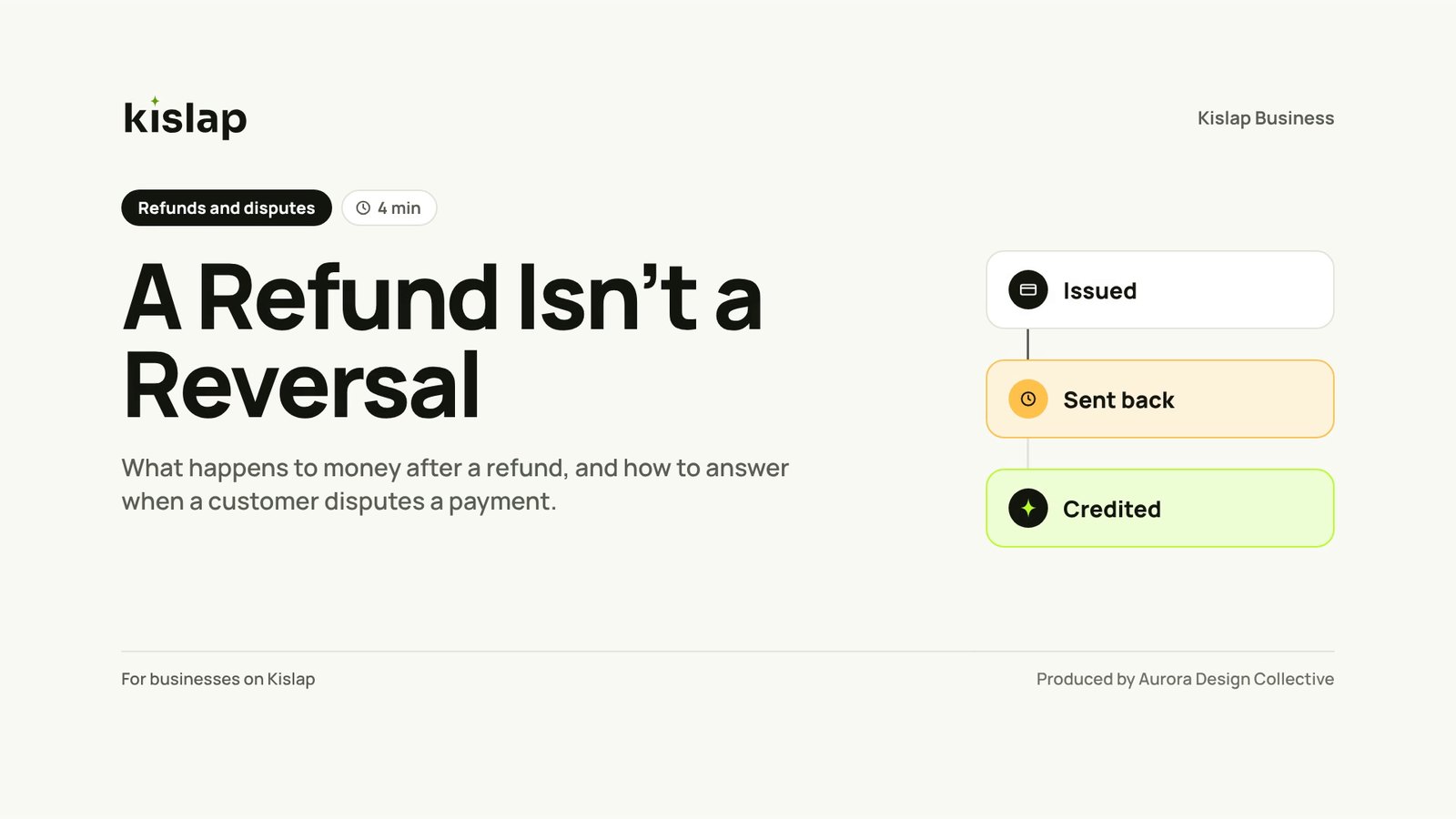
A refund moves through three stages. Kislap controls the first two; the customer's bank or e-wallet sets the clock for the last.

-
1
Issued
The seller refunds the order in the dashboard. It comes out of the next payout.
-
2
Sent back
Kislap returns the money in that day's batch, and it leaves on the next banking day.
-
3
Credited
The customer's bank or e-wallet adds it on its own schedule: e-wallets within about a day, cards in 5 to 10 banking days.
How we built it
One Monday, two problems, one seller. Bea refunds a returned bag, and two days later the customer says it isn't on her card. The same morning, another customer disputes an order the courier already delivered, and ₱1,850 goes on hold. Viewers follow each case on its own clock, then watch Bea gather five kinds of evidence and respond six days before the deadline.
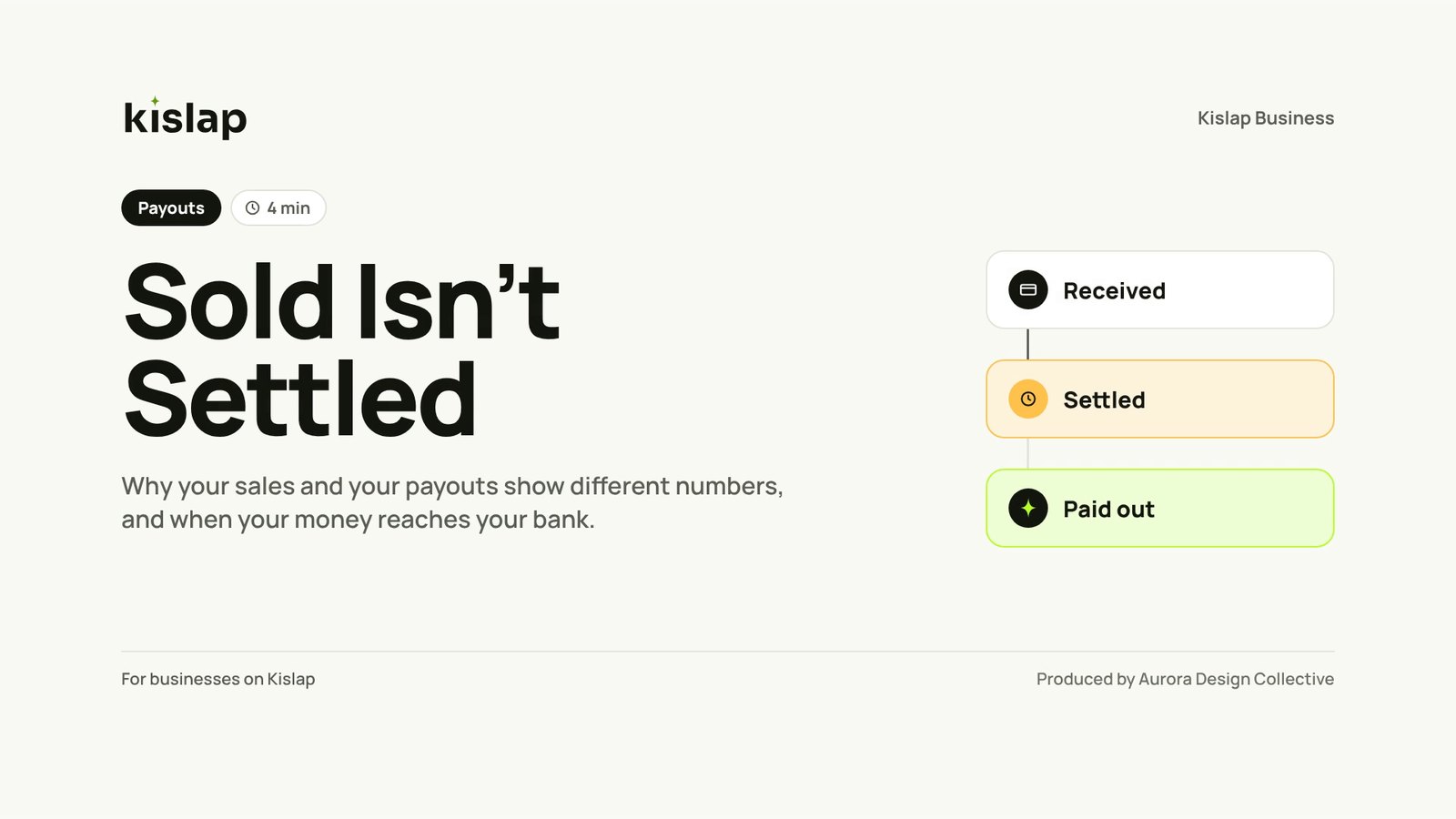
The video never promises how a dispute ends or exactly when a bank will credit a refund. It gives Kislap's own clock and a realistic range for the rest, so the seller can repeat it to their customer without over-promising. It continues from Sold Isn't Settled with the same seller, design system and screens, but stands alone.
- 1IssuedQ4
- 2Sent backQ1
- 3CreditedQ1
Q2 and Q3 test the disputes part of the module, which follows the three stages.
Try the self-check
Three self-check questions sit under the video on the help-centre page. If the client also wants it in an LMS, the SCORM version scores them.
What a client would receive
- 3:49 MP4 master in 1080p, ready to embed in a help centre
- Caption files (SRT and VTT), on by default for muted viewing
- Full transcript for the help-centre page
- Self-check questions and a one-page checklist PDF
- Optional SCORM 1.2 version for partner training